The Manage User feature allows OpenEMPI users with the administrator role to view and maintain user accounts and associate the user account with one or more roles that have been granted to the user.
To access the Manage Users feature
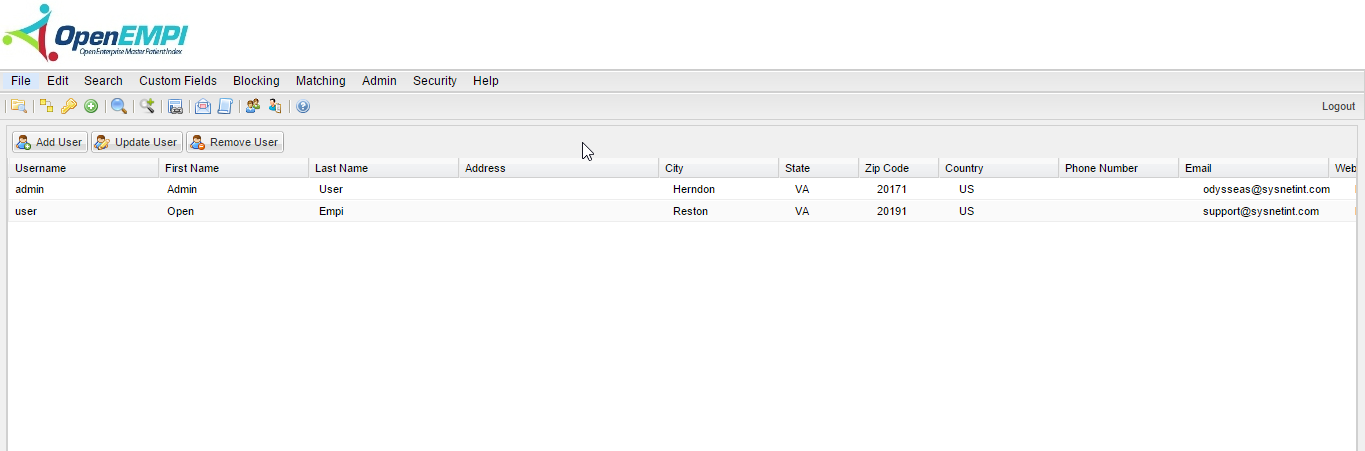
Log into OpenEMPI and select Security > Manage Users from the menu bar. The Manage Users page is displayed.
To add a user
-
Access the Manage Users feature.
-
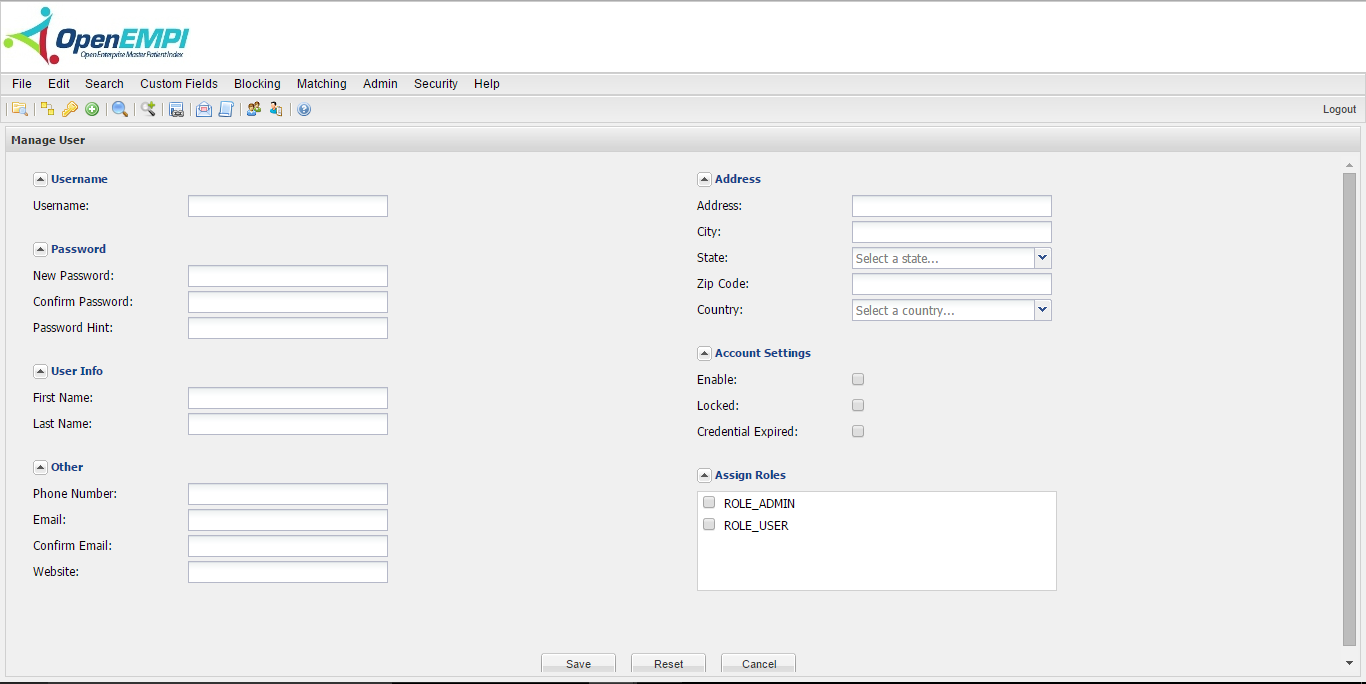
Click the Add User button. A blank panel is displayed.
-
Complete the panel for the new user and click Save.
To edit a user
-
Access the Manage Users feature.
-
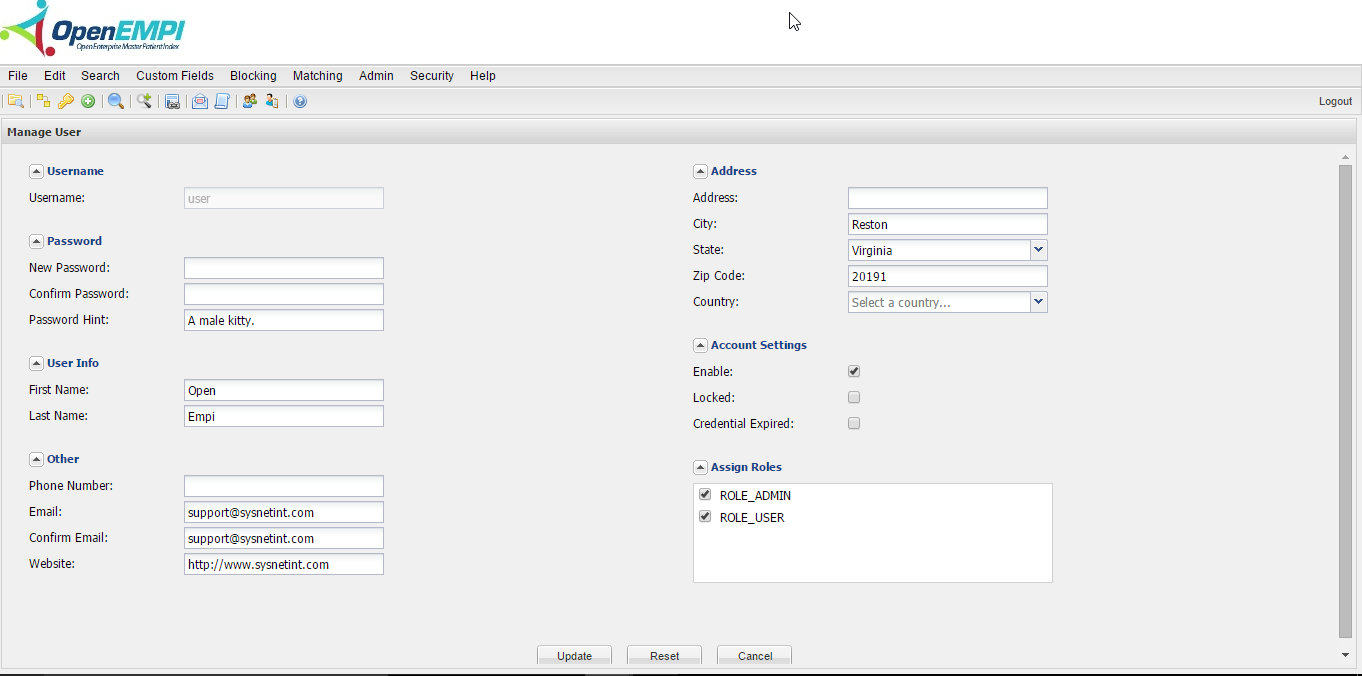
Select the user record you want to edit and click the Update User button. The user record opens.
-
Make your changes and click the Update button.
To delete a user
-
Access the Manage users feature.
-
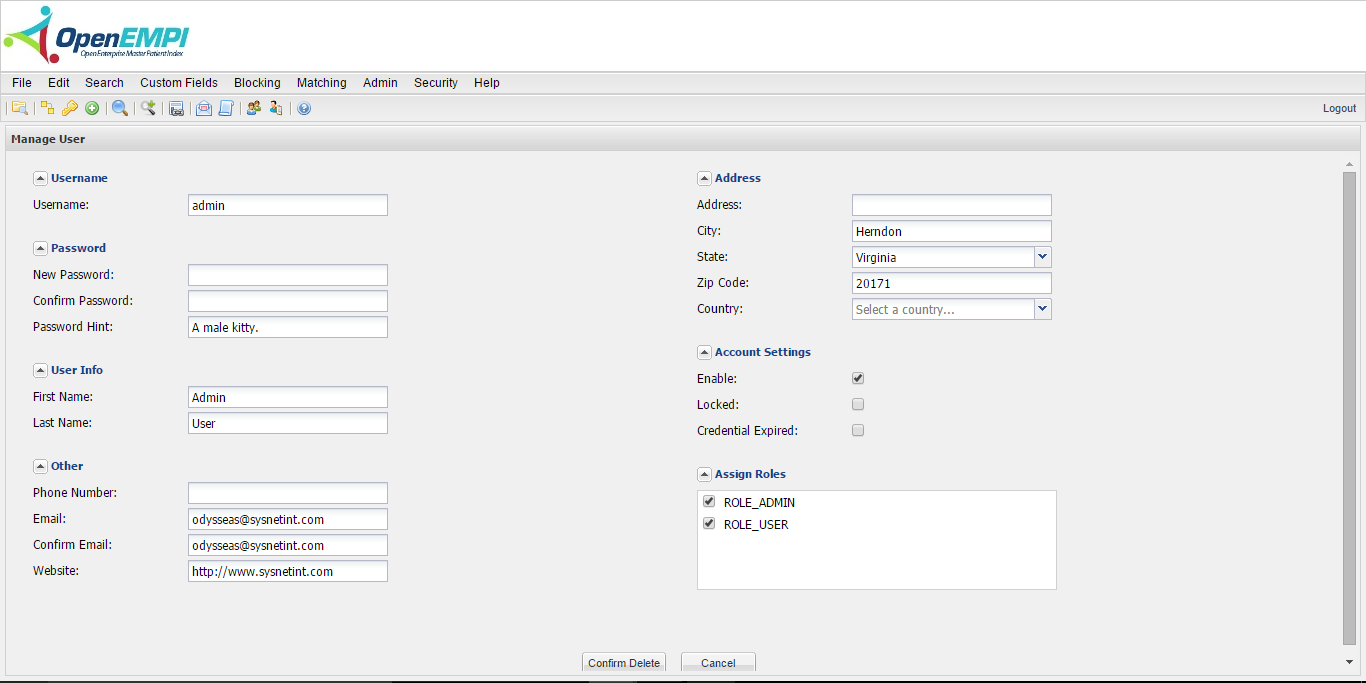
Select the user record you want to delete and click the Remove User button. The user record opens.
-
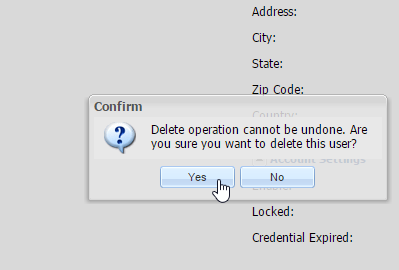
Click the Confirm Delete button. A window pops up with a message asking you to confirm the deletion.
-
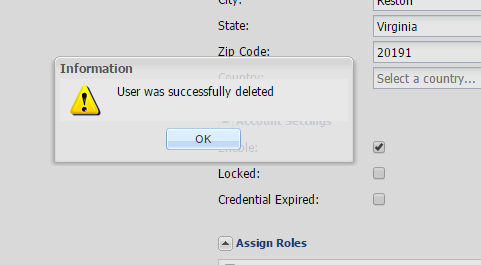
Click Yes to permanently delete the user record. A message will appear to confirm your actions.