Report Generator (Commercial Edition Only)
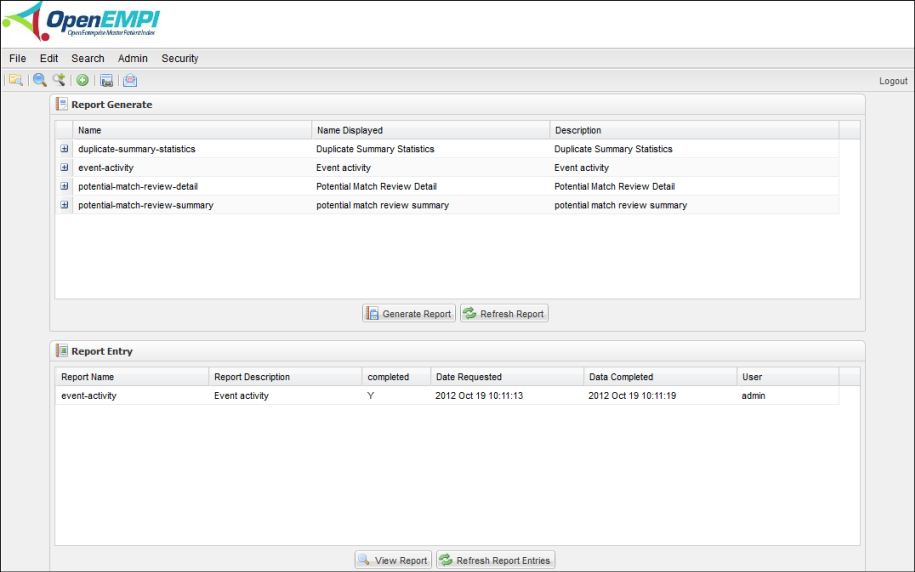
The Report Generator feature in OpenEMPI allows users to generate reports on the operation and configuration of the OpenEMPI instance. The Report Generator consists of two views: The table on the top view lists all the known types of reports that the system can generate. The second table in the lower part of the screen lists all the reports that have been either been scheduled for generation or have already been generated. You use the view at the top to request a new report to be generated and the bottom view to view or print a report that has already been generated.
Note: If the view at the top doesn’t list any reports, that means the reporting module has not been installed yet. You can follow the instructions at this page (Installation of Reporting Module) to install the reporting module.
To access the Report Generate feature
Log in to OpenEMPI and select Admin > Report Generate from the menu bar. The Report Generate page is displayed:
To generate a report
- Access the Report Generate page.
- Select a report design from Report Generate list and click the Generate Report button. A Report Parameters window pops up to show you the parameter fields for the report. Parameters are used for filtering the data using SQL queries defined in the report design.
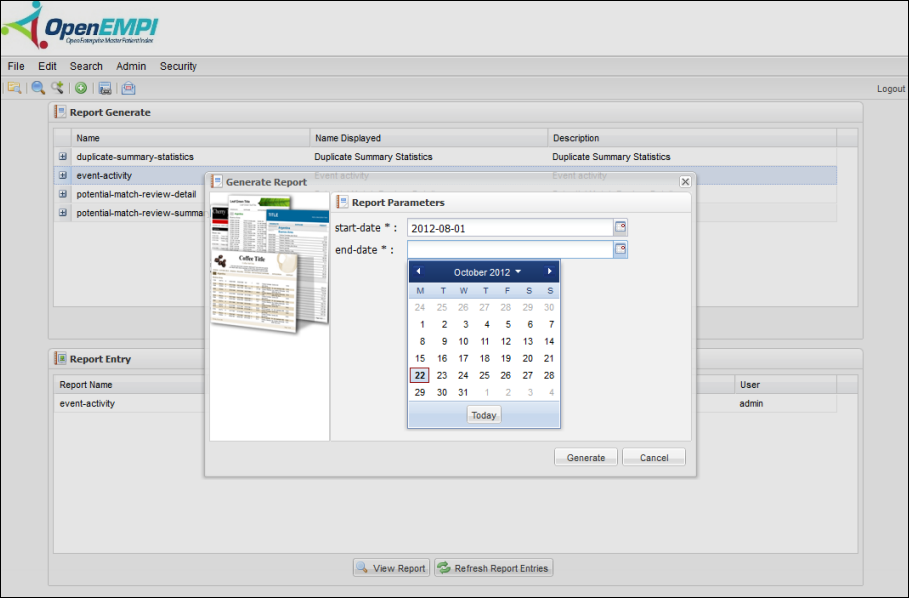
- Select your parameters and click the Generate button. OpenEMPI starts to generate the report. This may take a few seconds. A message pops up when the reports has been successfully generated.
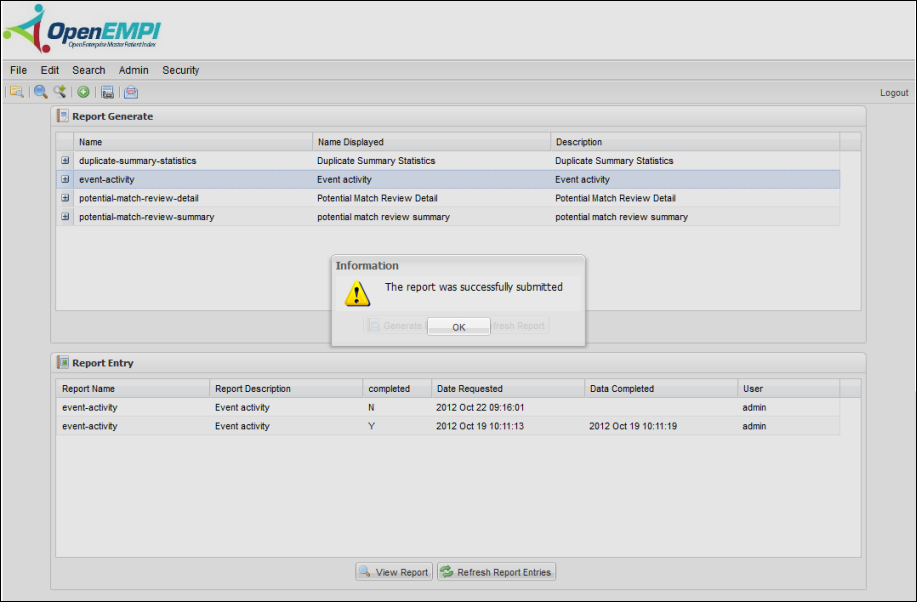
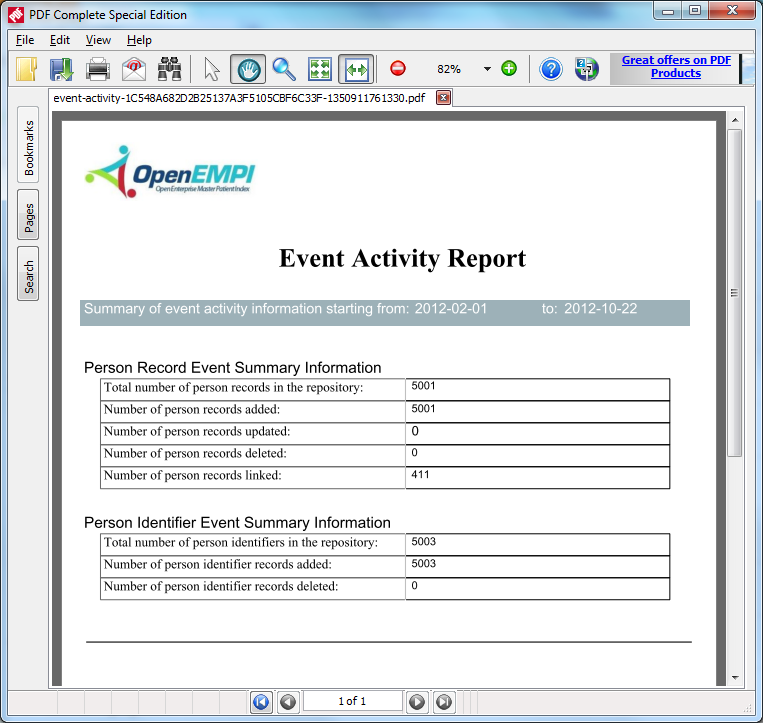
The report entry will be generated in PDF and added to the Report Entry list.
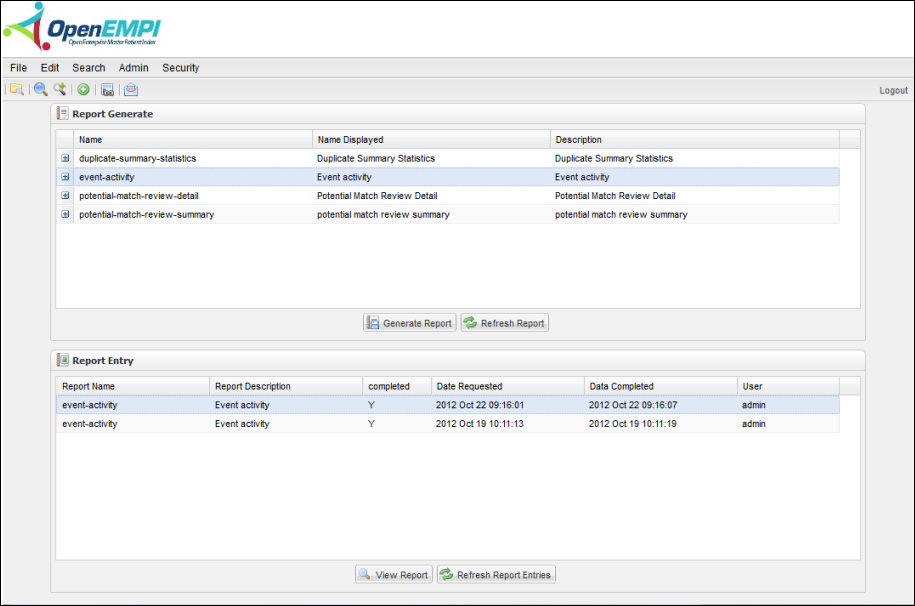
To open the report in PDF, select the report in the list and then click the View Report button.